The automatic generation of the Harris matrix can be optimized according to user preferences. From the main menu, after clicking the Harris icon / Add a Harris matrix / From existing stratigraphic relationships, the following window appears and allows optimizations to be made.
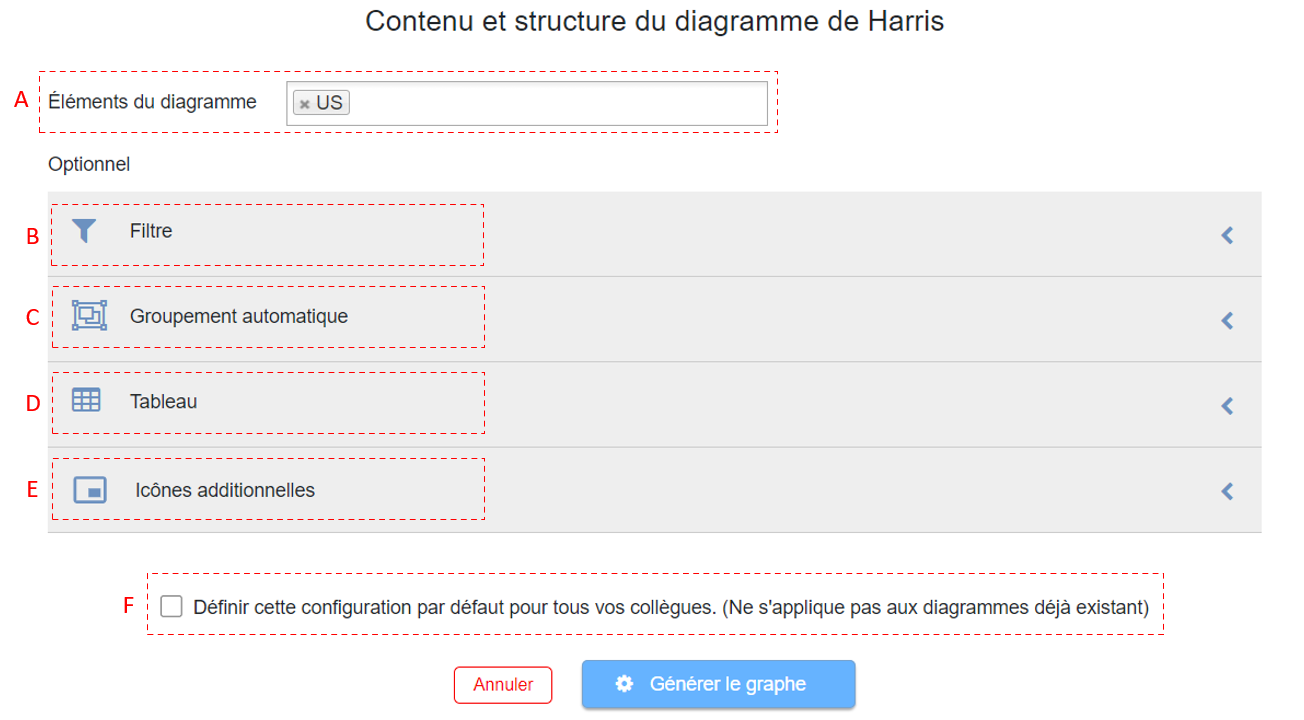
A: Matrix elements
The Matrix Element field is the only required field. A form type with stratigraphic relationships must first be selected in order to generate a matrix. This could be, for example, US or ST forms.

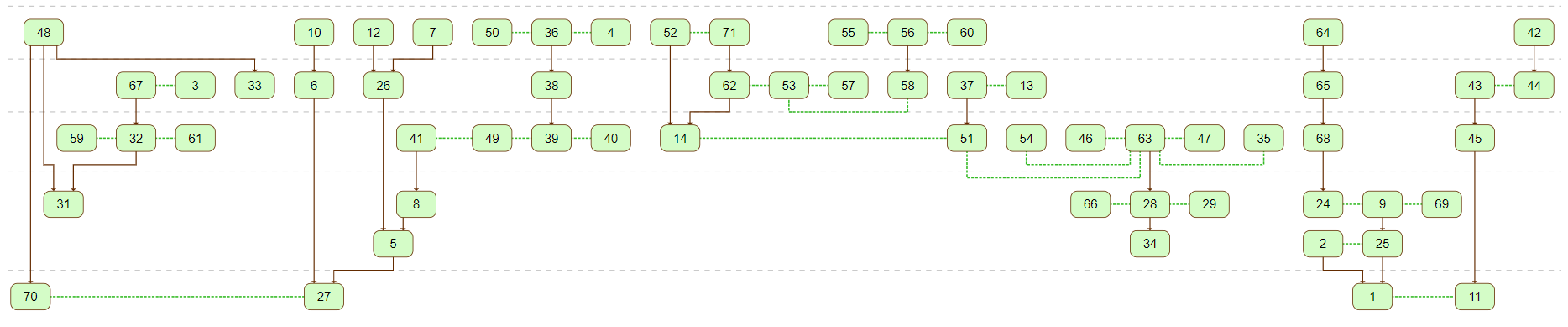
The subsequent generation of the Graph could yield the following result:
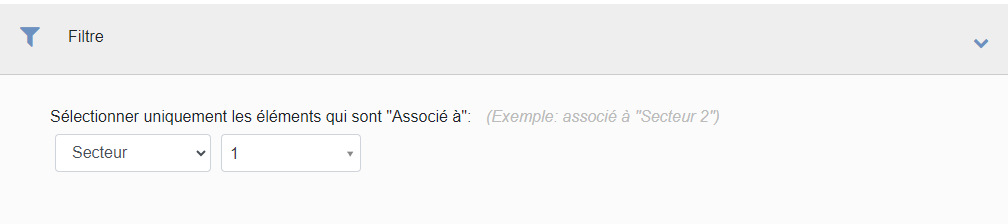
B: Filter
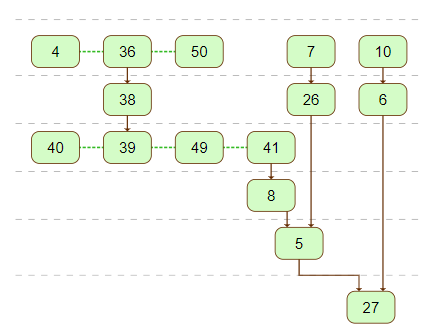
Matrix elements can be filtered. This is an optional field. In this example, only US associated with Sector 1 are included in the matrix.
The subsequent generation of the matrix shows this result:
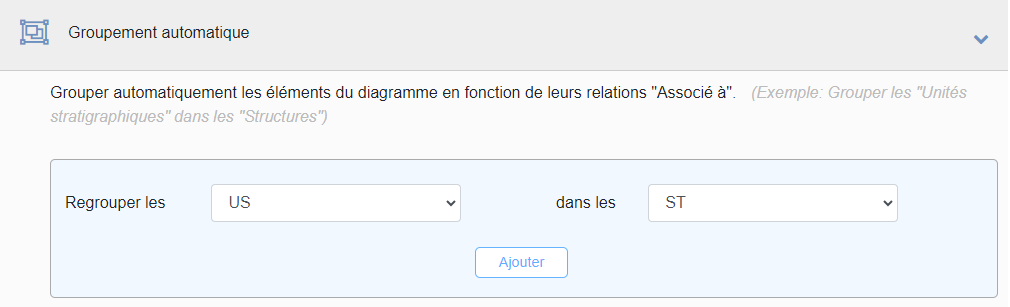
C: Automatic Grouping
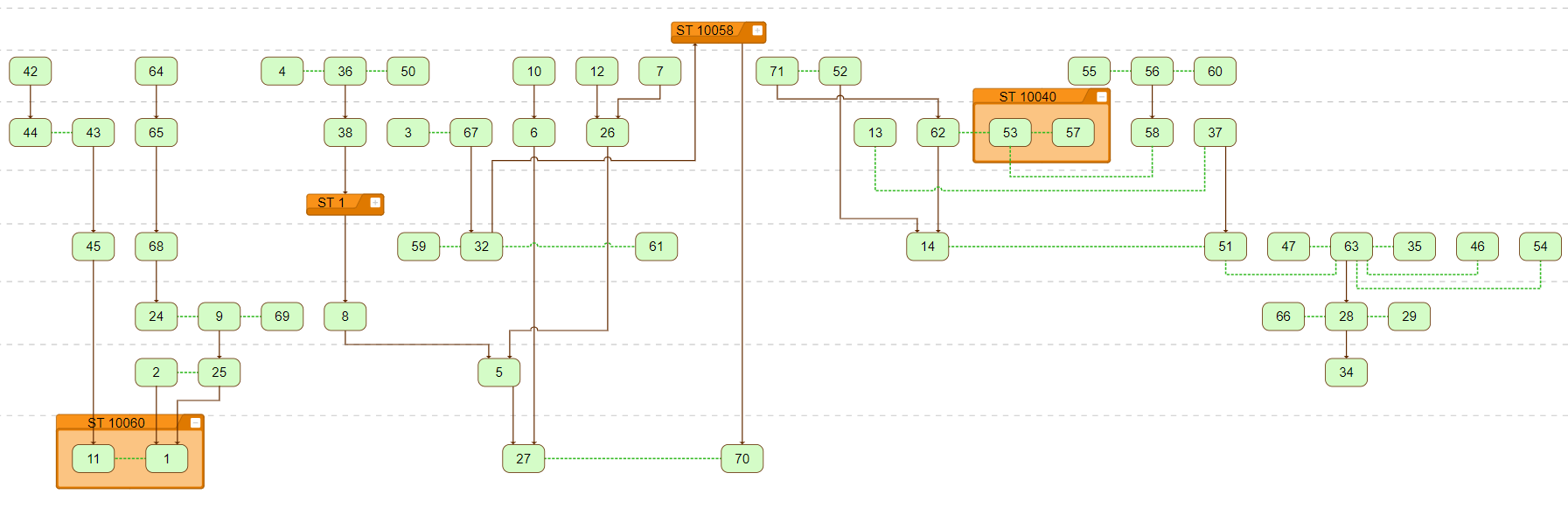
To facilitate matrix reading, elements can be grouped within enclosing boxes. In this example, structures (ST) are included in the matrix and encompass the US they contain.
The resulting matrix shows this layout. Clicking the white button at the top-right of each ST frame collapses it to simplify the view. ST 1 and ST 10058 have been collapsed here to demonstrate this feature.
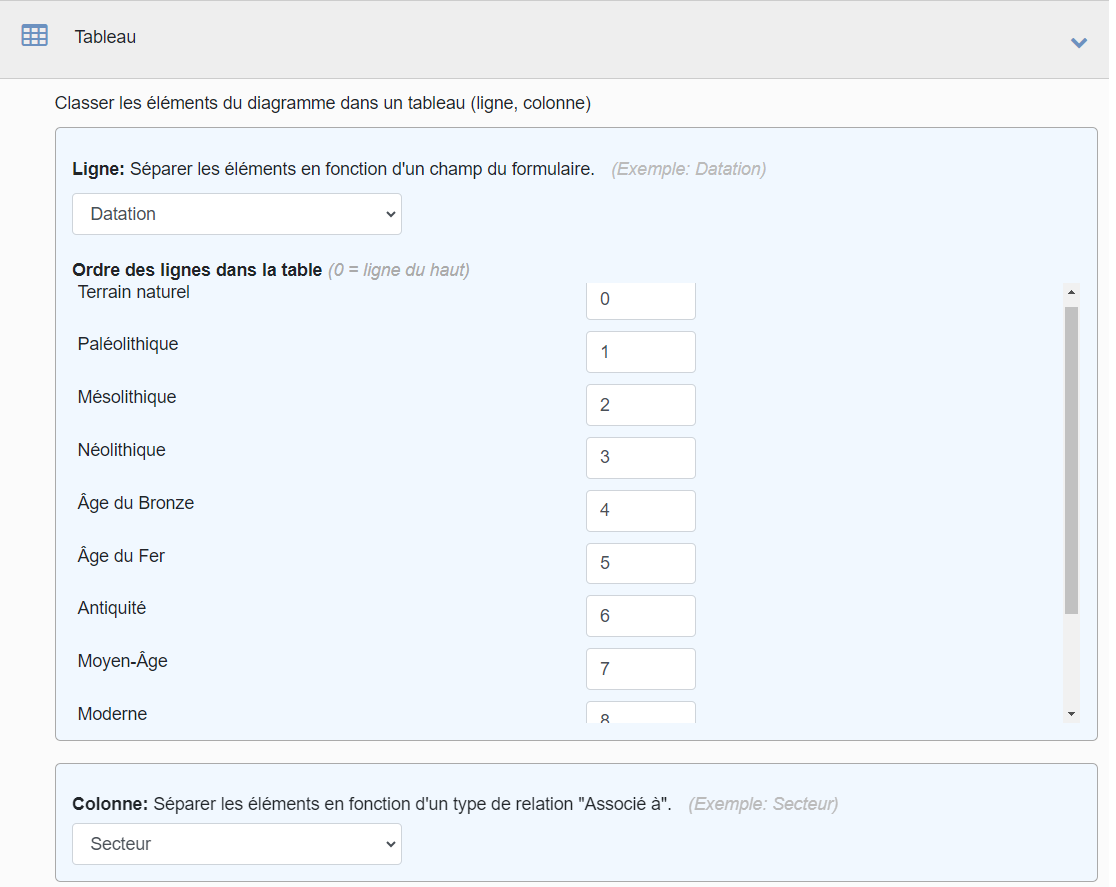
D: Table
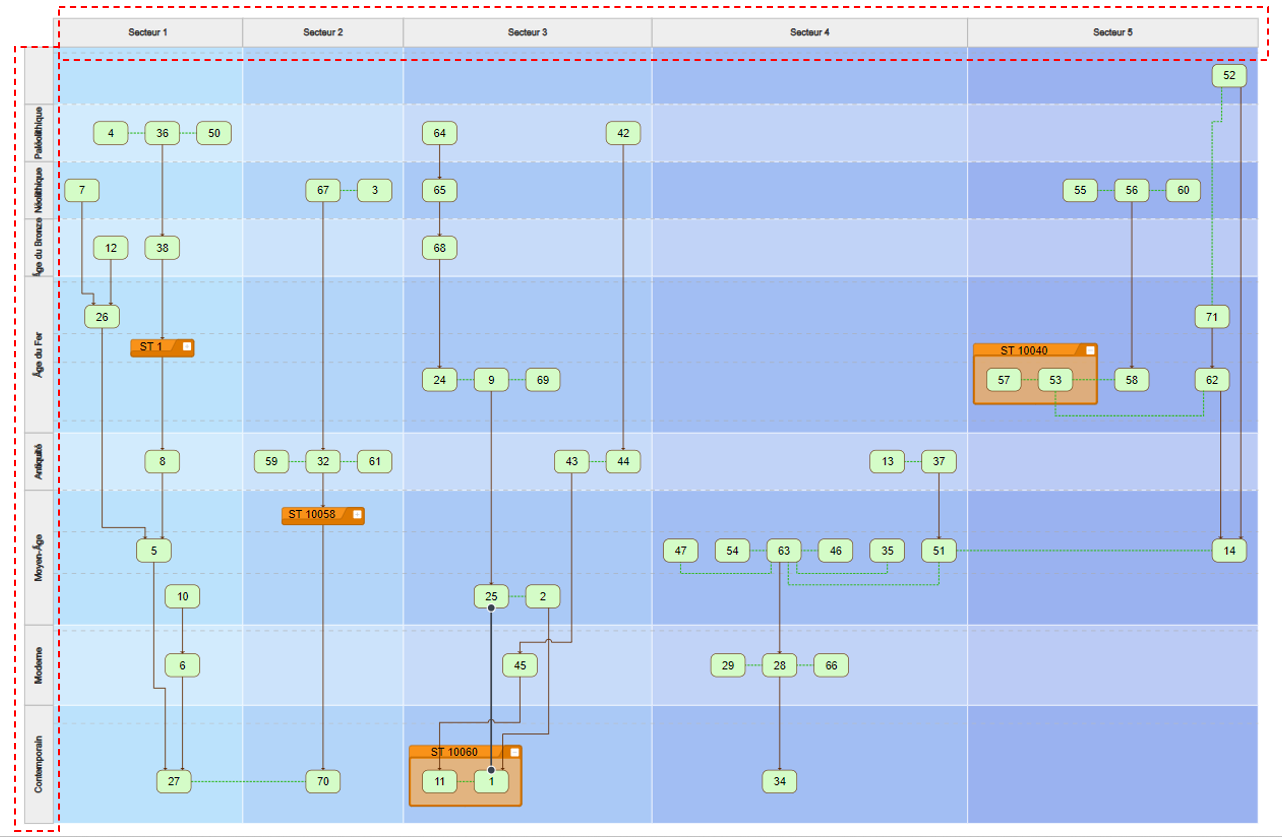
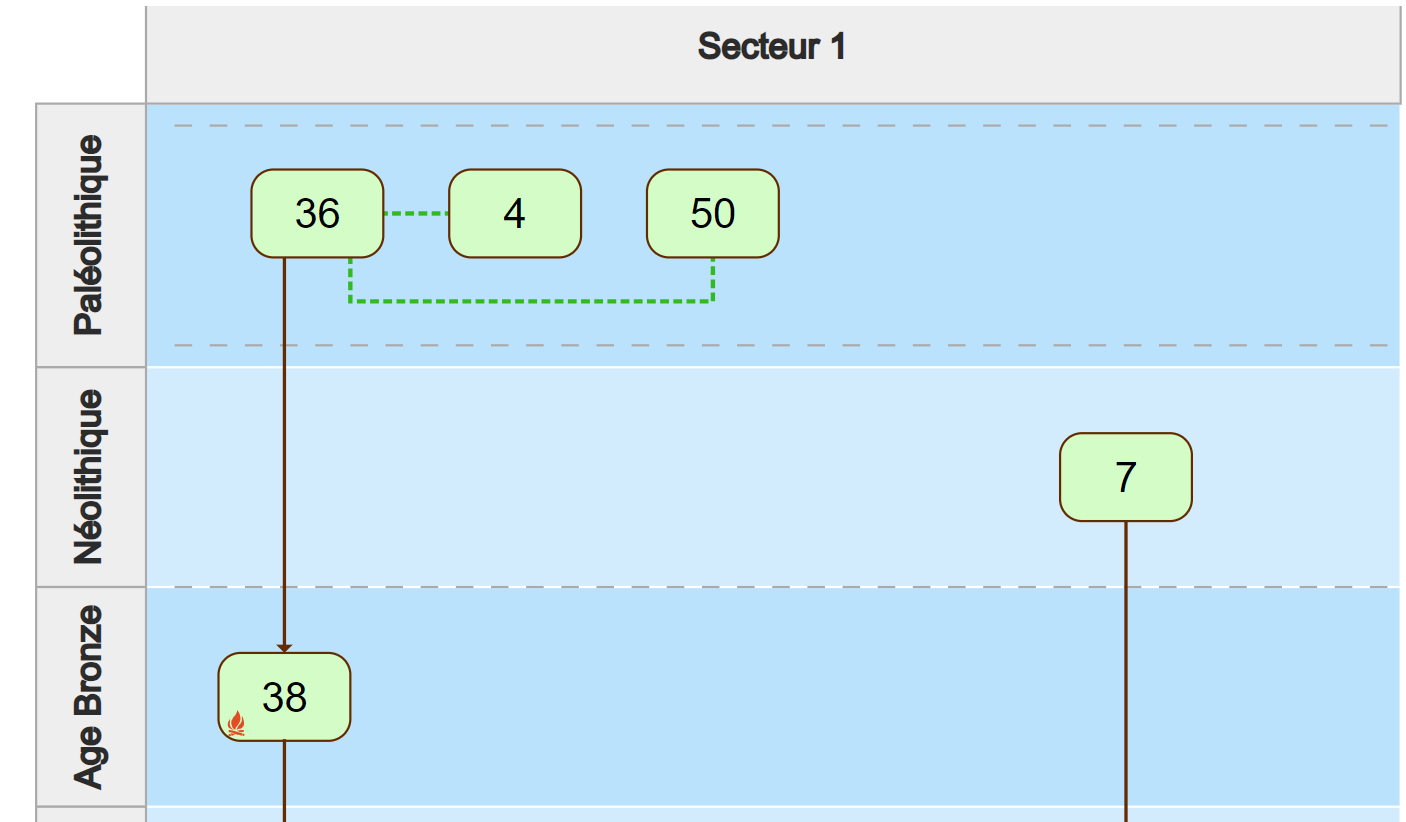
A matrix can be stratified horizontally (by row) or vertically (by column). In the following example, the rows are stratified by Dating and columns by Sectors.
E: Additional Icons
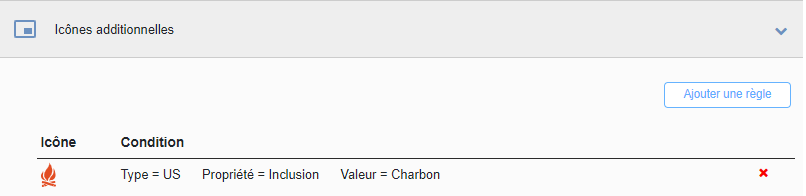
To improve matrix readability, icons can be added. In this example, the icon  is added to all US that have Charcoal in their Inclusion field.
Below is an example of the US 38 form with such a value:
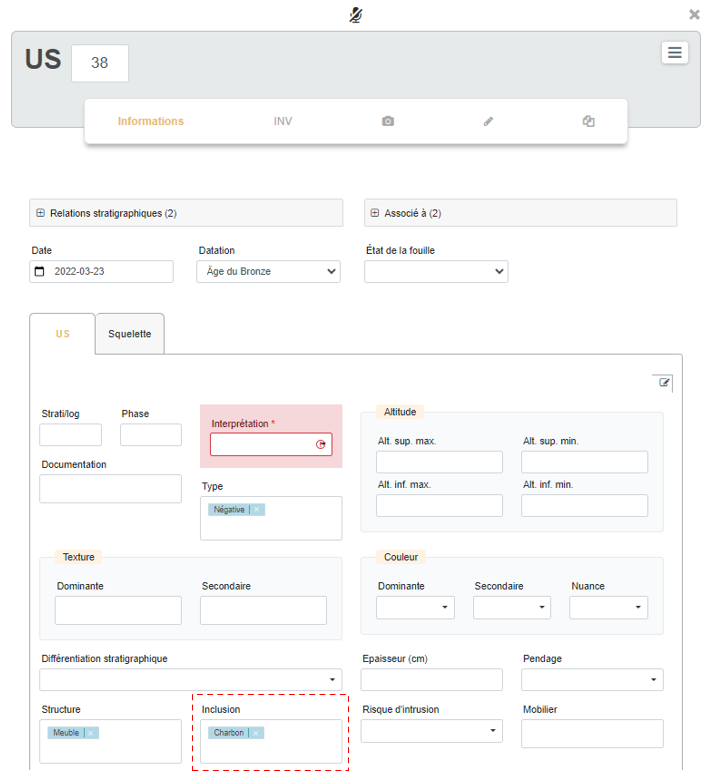
Then, establish a rule for the Harris matrix by clicking on Additional Icons. Select the form type US and the icon .
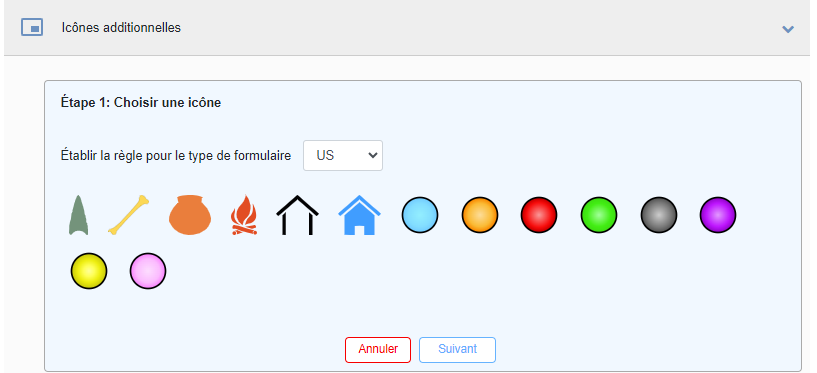
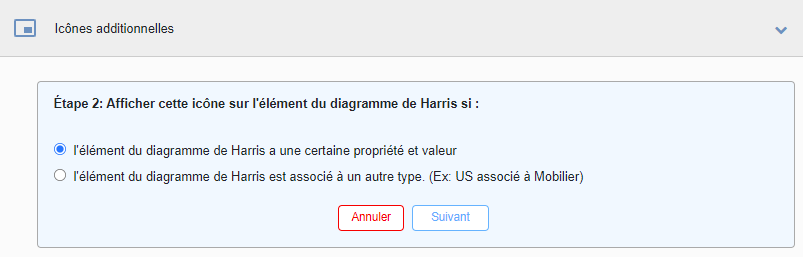
The next window offers two options: either the matrix element has a specific property and value — e.g., a US form with a property Inclusion that contains the value Charcoal; or alternatively, highlight all US with associated finds.
The next window clarifies the selection:
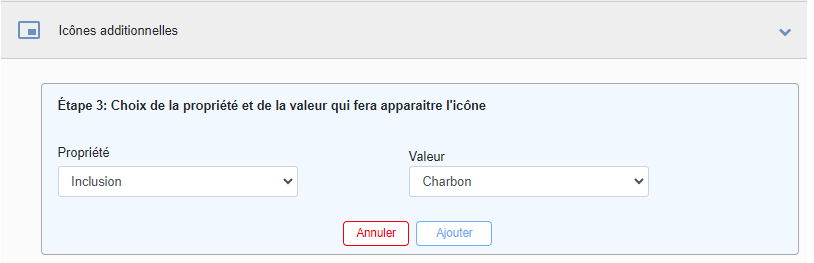
Finally, after clicking Add, the new rule is saved. The user may continue adding rules as needed.
After the automatic generation of the matrix, the icon appears next to US 38:
F: Default Configuration
Within an organization, the default configuration for the Harris matrix can be applied to all users. This is useful if many rules have been created. It ensures that every colleague starts with the same base configuration, which can then be customized.
To apply this default configuration for everyone, check this option before generating the matrix.
