Although batch editing of data is facilitated within the program, it is also possible to use the import module to modify existing data within forms.
In this case, the Database ID column is required in the Excel file during import. It corresponds to the internal identifier used by the program's database and is used to indicate which data entry should be modified.
The process can be broken down into three phases: export, modification, and import.
Exporting the form data in xlsx format from a table must include two elements:
- The database identifier named Database ID
- A selection of columns to export, modify in Excel, and re-import
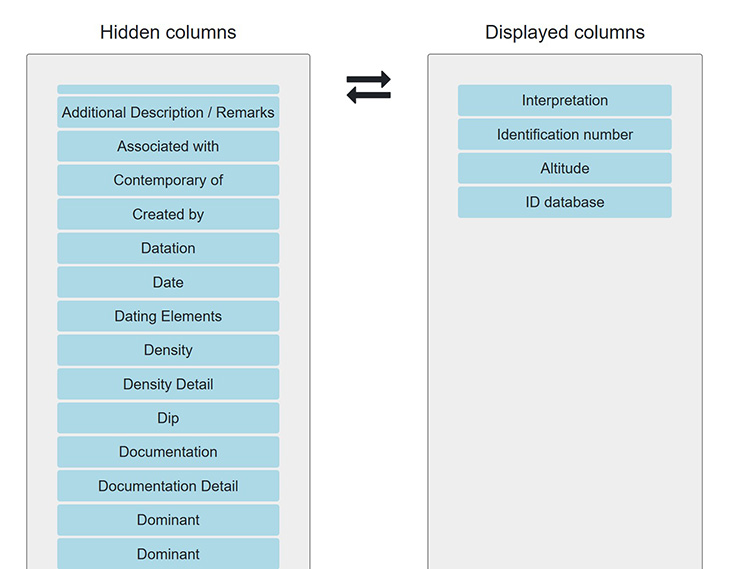
By clicking the Select columns to display button  at the top of the table, a window opens allowing you to prepare the table with the necessary columns for export. Drag Database ID to the right, in the first position. Then drag the desired columns to export and save.
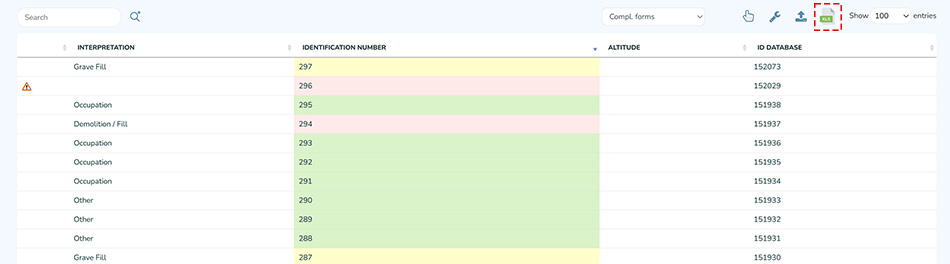
The table then displays the selected columns. Note that the Altitude column contains no data. Click the icon  above the table.
Once the data has been exported, it can be modified in Excel. In this example, altitude values have been added.

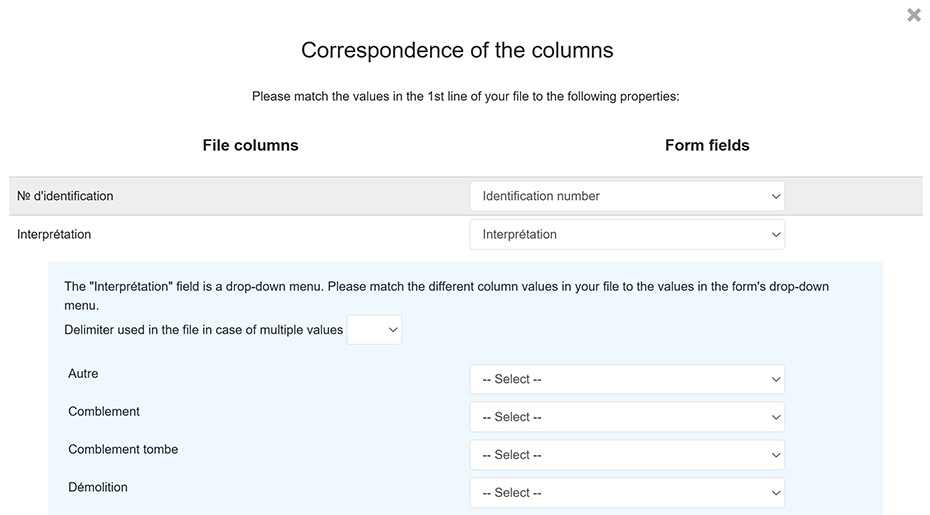
When importing the modified file, matching the Database ID column is required for the update to be applied correctly. The matching field is also named Database ID in the form’s list of fields.
Other columns in the Excel file can then be mapped the same way as in a regular import. It is not necessary to import columns that have not been modified. These unmodified fields in the database will not be affected by this update process and will retain their existing values.
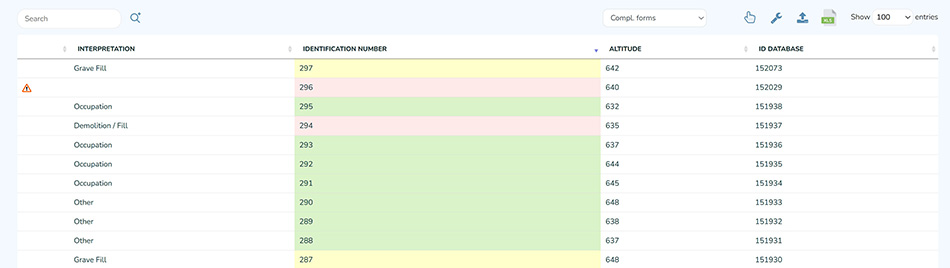
After finalizing the import, the result confirms that the altitude data has been added to the data table.