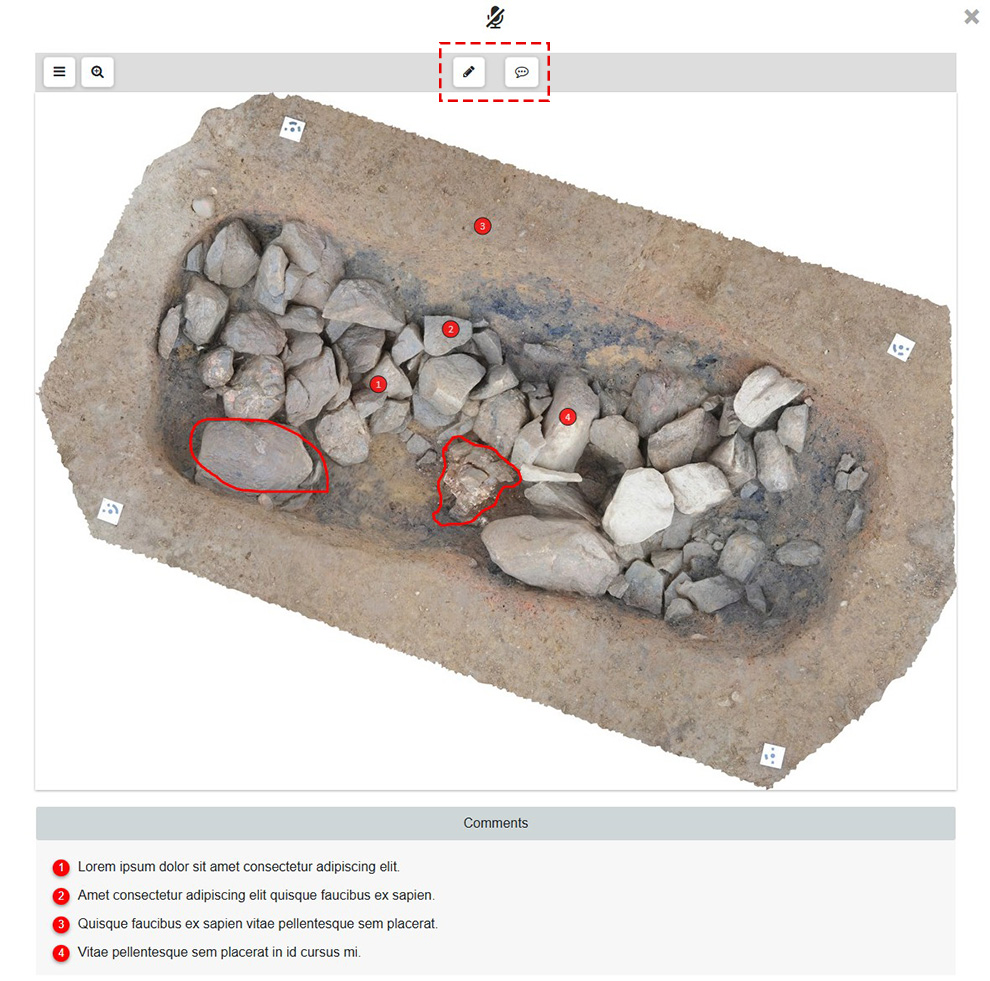
Each photo added to ArcheoBase is by default integrated into a Photo form. This provides the advantage of being able to use the Drawing Tool and the Comment Tool. The two buttons at the top of the photo allow launching these tools on the current photo. The comments created appear at the bottom of the image and refer to the numbers placed on the photo.
Drawing Tool
The drawing tool is designed to allow quick sketching in the field. Currently, detailed hand-drawn sketches on paper can be scanned and uploaded into a drawing form. See the Drawing section for more details.
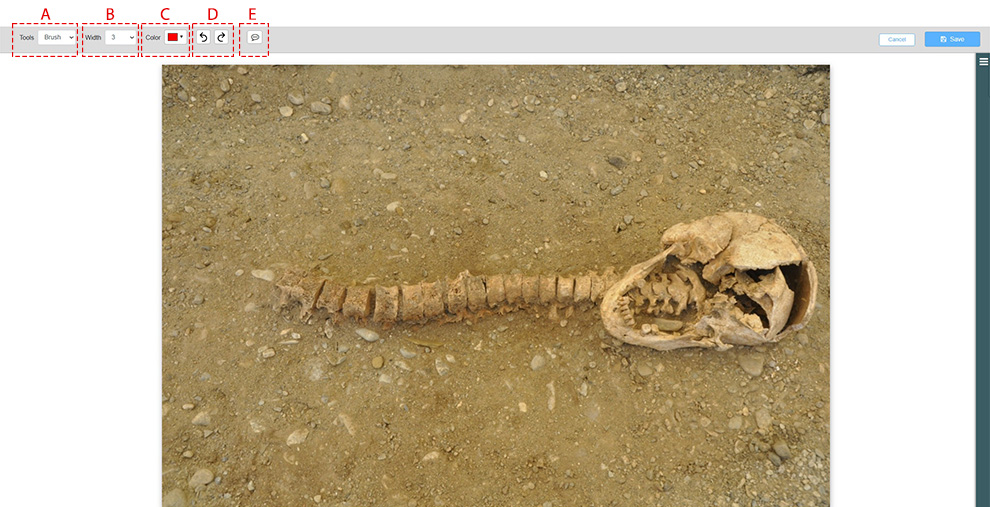
A: Tools
There are three types of tools:
- Brush: for freehand drawing
- Line: for drawing straight lines
- Eraser: for erasing
B: Stroke Width
The stroke width can be increased or decreased. A wider stroke makes erasing easier when using the eraser.
C: Color
A color palette allows selecting the color of the drawing tool.
D: Undo/Redo
Arrows allow undoing or redoing the last action.
E: Comment
The button opens the comment tool described below.
Comment Tool
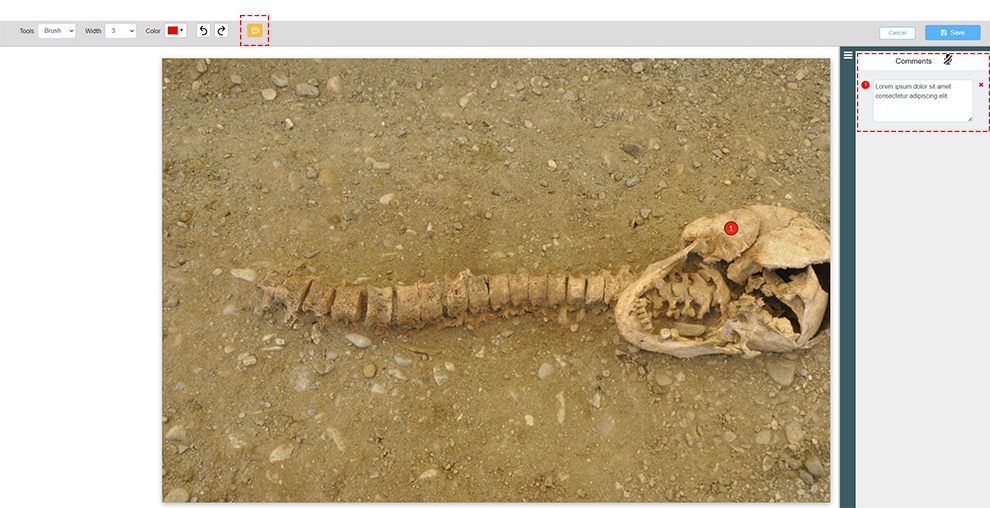
The icon  opens the comment tool. A left click on the desired location on the photo opens a panel on the right where comments can be entered. A number is automatically added on the image and can be moved with the mouse. In the right panel, comments can be typed manually or entered via the voice input icon.
The voice input icon  , when activated, allows the user to click in a field and transcribe their speech into text within that field. The voice input button to use depends on the device. On a computer, use the icon at the top of the form. On a tablet, use the voice input icon from the on-screen digital keyboard.