In simplified terms, a form in ArcheoBase is the digital equivalent of a paper form. Forms can represent elements such as stratigraphic units, structures, skeletons, inventory objects, and more. Users can define the specific forms they need.
The digital form offers far greater flexibility and efficiency in entering, processing, and linking archaeological information. Fields can be easily modified or added. The presentation of complex forms is greatly simplified through features such as tabbed views and dropdown menus.
The content and structure of a form can be configured by the user, provided they have the Form-Management rights. There is no limit to the number of different form types that can be created.
Interface
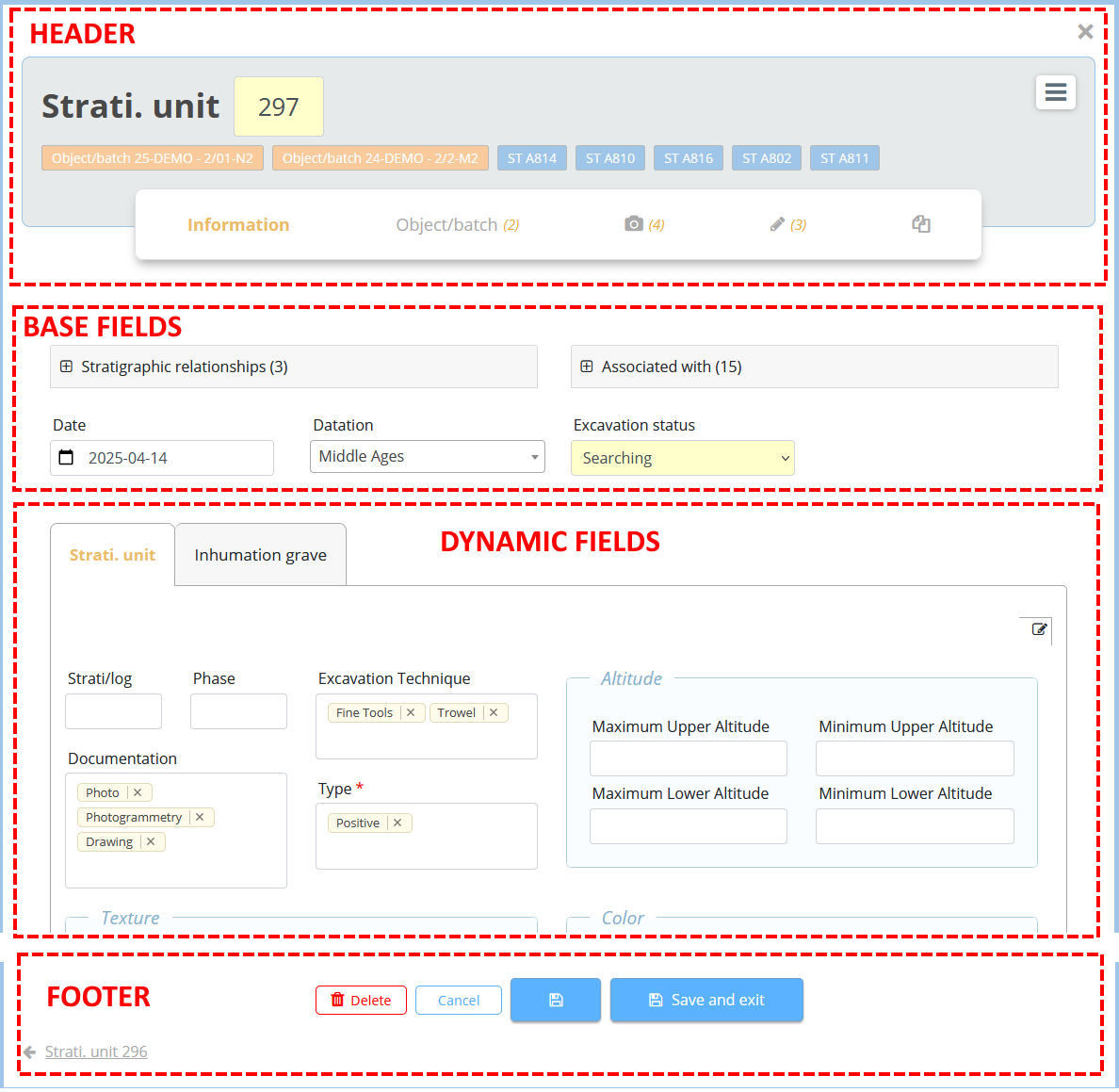
The interface of a form contains a Header, Base Fields, Dynamic Fields and a Footer.
Header
 |
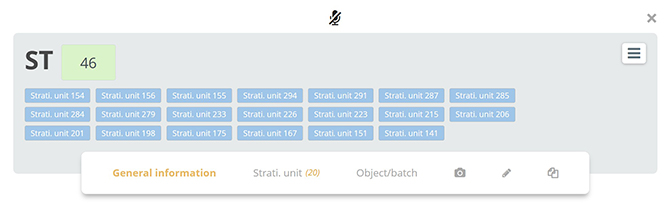
Upon activation, the Voice Input icon allows the user to click on an empty field and transcribe their spoken words into text. The Voice Input button can be found at different locations depending on the device. On laptops/desktops, the Voice Input icon is on the top header. On tablets, the Voice Input icon is on the screen's digital keyboard. |
 |
The Form Type and (ID) Identification Number are shown on the left. A new ID number is generated automatically and is based on the last ID number and incremented by one. It can also be changed manually. Automatic increments can also follow a user-defined logic or format, if required. If this is the case, please contact our support team: support@archeobase.org |
 |
Shortcut Buttons to related forms can be added via the Forms Configuration Menu - "Associated with shortcuts". They enable quick navigation from one type of form to another. |
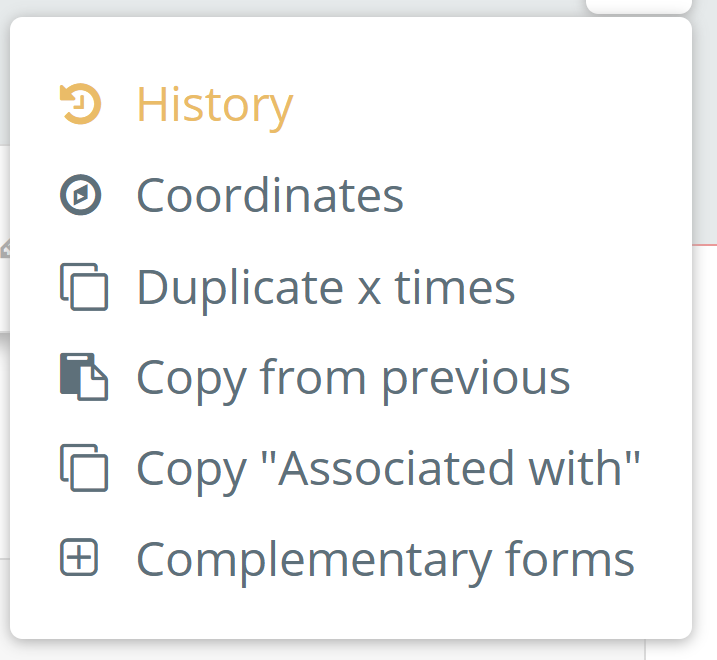 |
The right-hand drop-down menu allows different options:
|

 |
Information displays the fields of the form. |
 |
Tabs representing other types of forms can be added to existing tabs when creating a form. For example, an Inventory tab (INV) can be added to the menu bar of a Structure (ST) form to allow the user to view a table listing all inventory items associated with that structure. |
 |
The Photos icon displays the specific gallery of photos linked to the form. |
 |
The Drawings icon displays the gallery of drawings linked to the form. |
 |
The Attached Files icon facilitates the inclusion of reports or other documents linked to the form. It functions similarly to Document Management Tab, but the documents are linked to a single form. |
Base Fields

Base fields are commonly used in archaeological forms. They can be shown or hidden in the Form Configuration window. These include the fields Stratigraphic Relationships, Associated With, Date, Dating and Excavation status fields.
Dynamic Fields
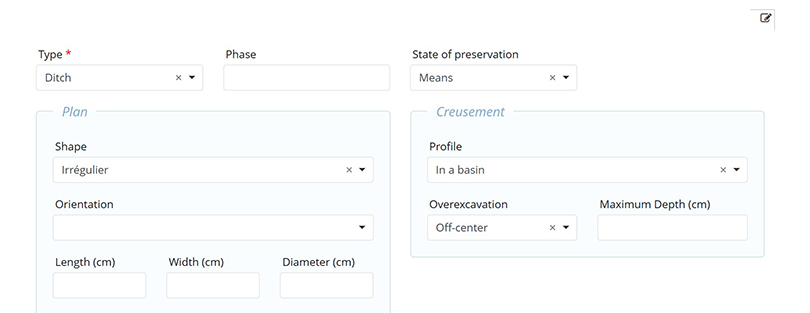
Dynamic fields represent the majority of the information in a form. They are fully configurable based on the user’s needs and are generally an enhanced version of the paper forms previously used in the field.
Users with Form-Management Rights will see a pencil icon on the right side of the page. This icon allows them to configure all the fields located below it.
Page Footer

Navigation arrows located on the left and right sides of the form allow users to quickly move to the previous or next form. Two buttons Save and Save and Exit, allow users to save their changes, with or without closing the form window.
Form Content
A form can contain different types of fields:
A form can be structured using :
A form can include sketches that allow drawing with one of the following as a background:
- A blank page
- A grid (graph paper)
- An SVG illustration, such as the representation of a skeleton
- A photo
A more detailed description of the configuration of forms and fields is provided in the Dynamic Forms section.