There are three ways to view associations within a form. They can be accessed via the “Associated with” panel in the form, through a specific tab added to the form’s menu bar, or by adding a Shortcuts button.
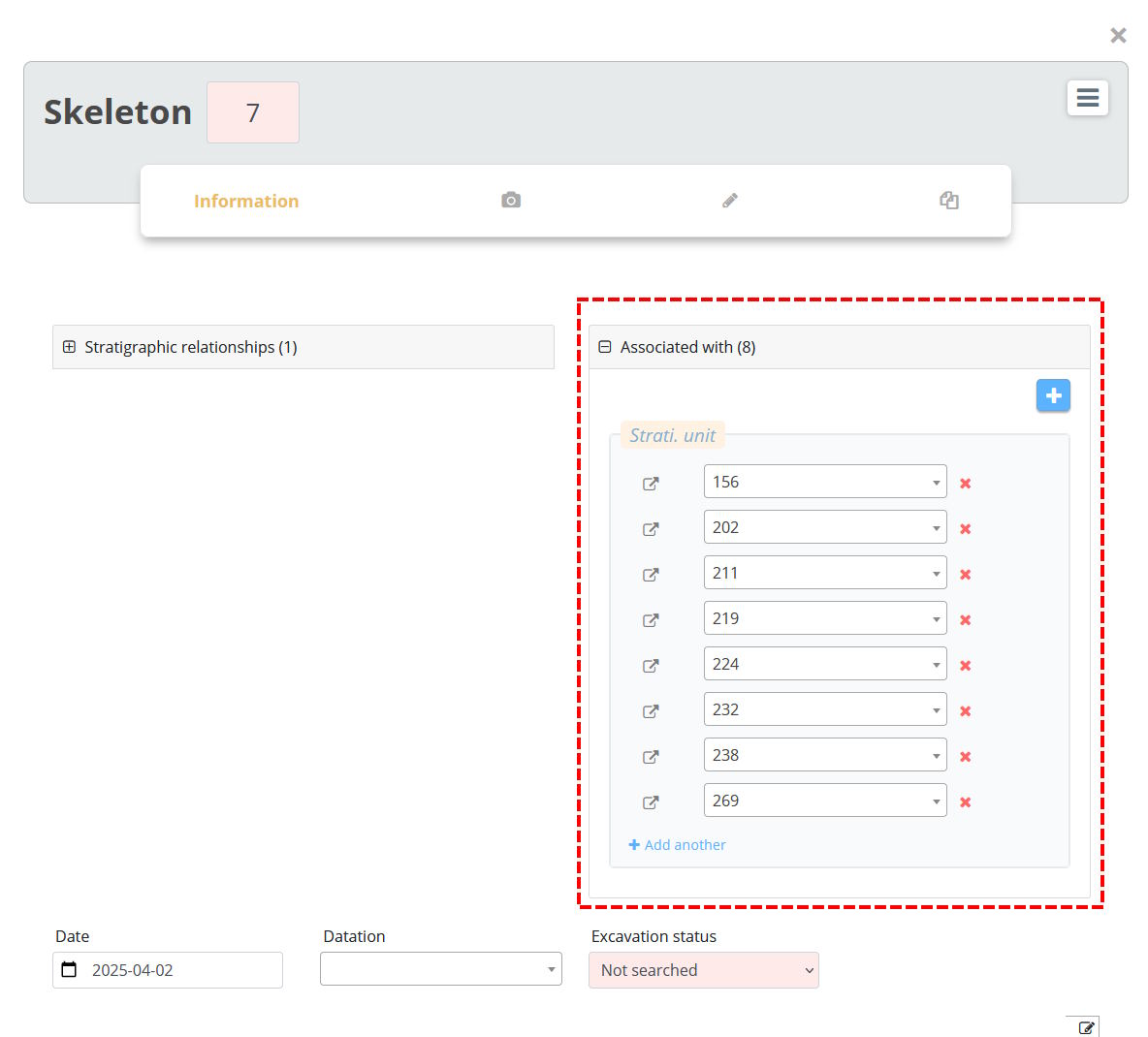
The “Associated with” panel is directly visible within a form, if the form has been configured to display this component.
Advantage:
The “Associated with” panel displays all the associations related to the current form.
Disadvantage:
When a form type contains many associations, the “Associated with” panel becomes less practical for finding and consulting individual elements.
As an example, an individual form of type Sector might contain several hundred associated Stratigraphic unit forms.
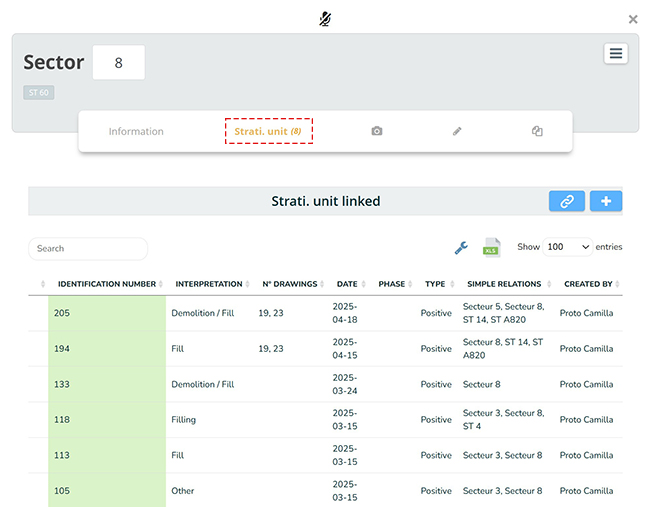
In the example below, the Stratigraphic unit tab was added to the menu bar of a form of type Sector. This approach allows for quickly reviewing, in table format, all the Stratigraphic unit forms contained in this sector.
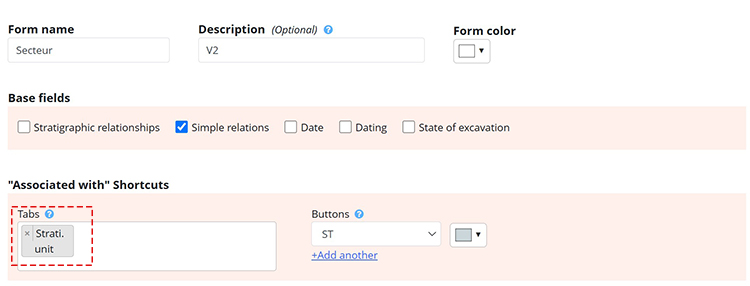
A tab can be added via the menu Configuration  / Form Configuration, by editing the desired form type. Simply add the desired tab in the field group "Associated with" Shortcuts.
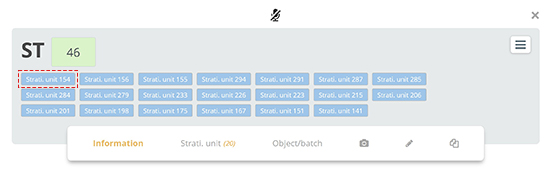
In the following example, a Structure (ST) shortcut button allows the display of the identification number of the structure to which the Stratigraphic unit form is linked. The user can easily navigate to that form by clicking the shortcut.
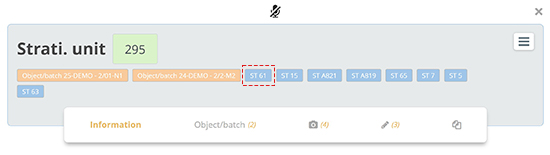
If the Structure form also contains a Stratigraphic unit shortcut button, the user can easily navigate back and forth between the two forms.
Advantages:
-
Quick access to associated individual forms
-
Easy navigation from one form to another
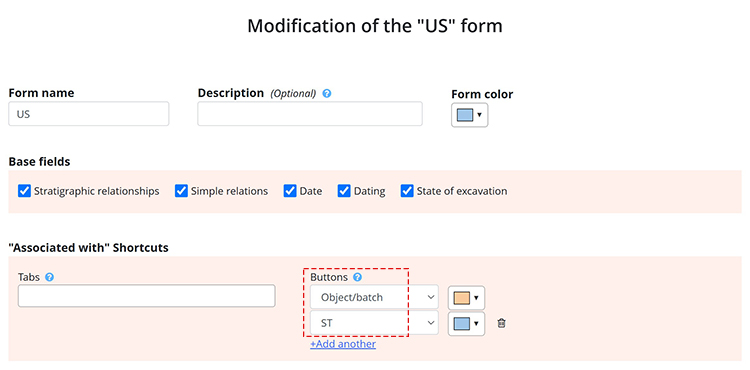
A Shortcut button can be added via the menu Configuration / Form configuration, by editing the desired form type. Simply add the desired button within the field group "Associated with" Shortcuts.
The following example shows that the ST button was added to the US form.