Visualization
All drawings related to an intervention can be accessed under the Drawings tab in the main menu bar. A new drawing form can be created using the Add button.
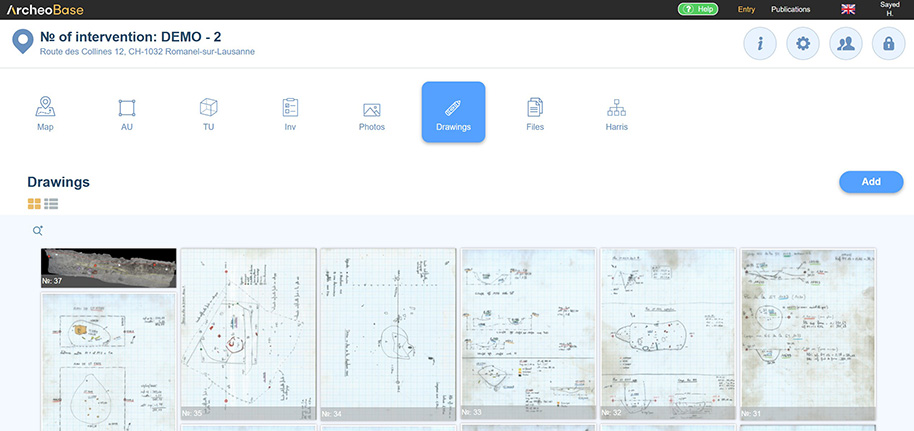
The icons  allow viewing the drawings either as a gallery or in table format.
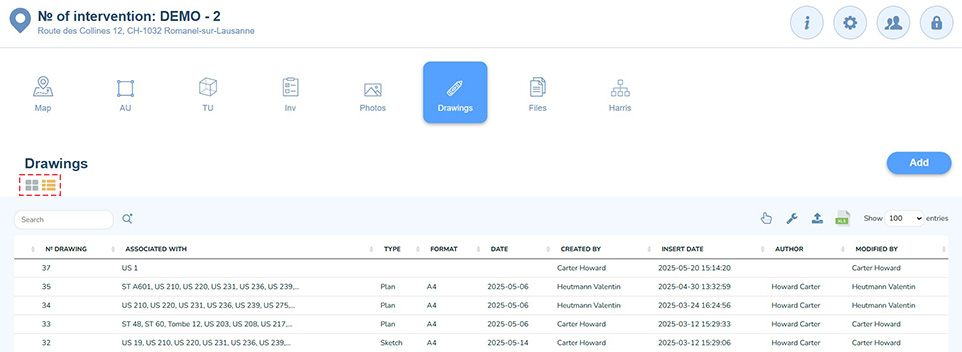
Each form type also features a tab  offering an overview of the drawings associated with the current form. The example below refers to the US 1 form and its directly associated drawings, which can again be viewed either as a gallery or a table.
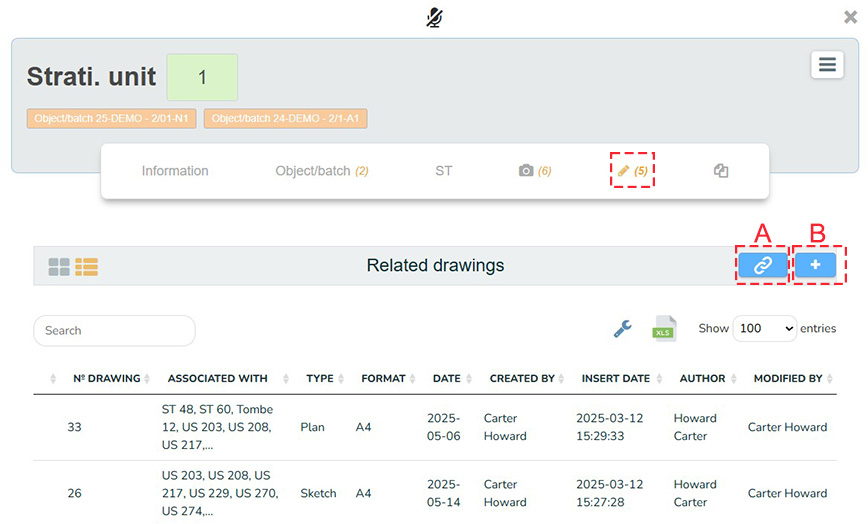
A: Add an existing drawing to the form
The  button links an existing drawing from within the system to the current form. The user can thus select a drawing already listed under the Drawings tab in the main menu to associate it.
B: Add a new drawing
A new Drawing form can be created directly from the form it will be associated with, using the icon  .
By default, each drawing uploaded or created within ArcheoBase has its own form. This allows visualization in table format and access to functionalities related to dynamic forms.
To add a drawing, select the Drawings tab in the main menu and click Add to create a new Drawing form.
The form consists of three main sections: the header, base fields, and dynamic fields.
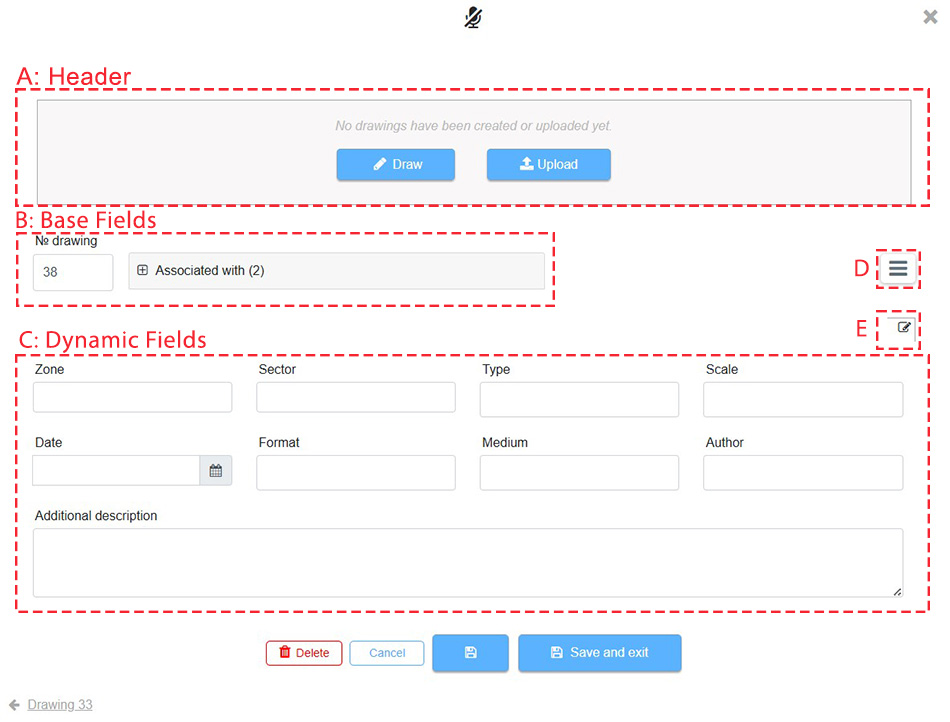
A: Header
The header of the Drawing form contains two buttons:
 |
To access the Drawing Tool. |
 |
To upload a scanned drawing. |
B: Base Fields
The Base Fields of the Drawing form include:

The Drawing number increments automatically.
- It can be edited manually if needed.
- It can also follow a specific format, if required. In such cases, contact the support team.
The Associated with dropdown menu lists available associations.
C: Dynamic Fields
The Dynamic Fields make up the majority of the form’s content. As shown below, the icon  is used to modify them, provided the user has Form Management rights.
D: Dropdown Menu
The dropdown menu  offers several options:
 |
Opens a window showing the geographic coordinates linked to the drawing. |
 |
Generates copies of the current form. The ID numbers increment automatically. |
 |
Replicates the Associated with links from an existing form into the current form. |
|
|
E: Editing Dynamic Fields
The icon indicates that the fields below are Dynamic Fields. These fields are fully customizable by the user if they have the Form Management rights.